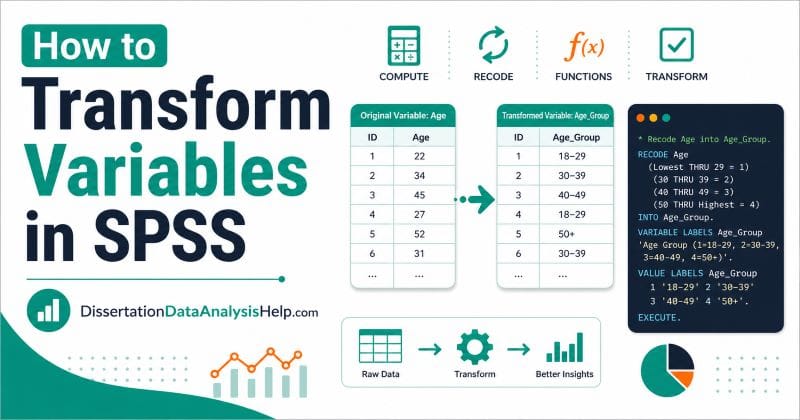
Transforming variables in SPSS is one of the most important steps in preparing data for analysis. A dataset may look complete, but the variables may still need to be recoded, grouped, reverse-coded, converted, or combined before you can run the correct statistical test. This is common in dissertations, theses, surveys, and research data analysis. For example, you may need to create age groups, reverse-code Likert-scale items, compute a total score, calculate a mean scale score, or apply a log transformation to a skewed variable.
The good thing is that SPSS gives you several options for transforming variables. The most common ones are Compute Variable, Recode into Different Variables, Automatic Recode, and Visual Binning. In this guide, you will learn how to transform variables in SPSS using clear examples, menu steps, and SPSS syntax. The guide is written for beginners, but it also includes enough detail for students working on dissertations, theses, and research projects.
If your dataset is already becoming confusing, you can also get professional SPSS dissertation help to prepare, code, transform, analyze, and interpret your data correctly.
What Does It Mean to Transform Variables in SPSS?
To transform variables in SPSS means to change the way a variable is stored, coded, calculated, or represented so that it becomes more useful for analysis. This does not always mean changing the original meaning of the variable. In many cases, you are simply preparing the data so that SPSS can analyze it correctly.
For example, suppose your survey has five questions measuring job satisfaction. Each question is stored as a separate variable. Before running some analyses, you may need to combine those five items into one overall job satisfaction score.
That is a transformation.
You may also transform variables when you want to:
- Convert age into age groups
- Reverse-code negatively worded Likert items
- Create total scores from survey items
- Create mean scores from questionnaire items
- Convert text responses into numeric codes
- Apply a log transformation to skewed data
- Standardize variables before analysis
- Combine small categories into larger groups
In simple terms, variable transformation helps you move from raw data to analysis-ready data.
Why Variable Transformation Matters in SPSS
Variable transformation matters because statistical analysis depends on how your variables are prepared. If your variables are coded incorrectly, your results may also be wrong.
For example, if a negatively worded Likert item is not reverse-coded, it may reduce the reliability of your scale. If text responses are not converted into numeric categories, SPSS may not use them correctly in some procedures. If age is not grouped properly, your demographic table may be difficult to interpret.
Transformation is also important when your dissertation or thesis requires composite variables. Many research instruments use several items to measure one concept. In that case, you may need to compute a scale score before running correlation, regression, ANOVA, or other analyses.
Good transformation also makes your results easier to explain in your methodology and results chapter. This is why data preparation is an important part of dissertation data analysis.
In short, variable transformation helps you:
- Prepare clean data
- Use the correct statistical test
- Avoid coding errors
- Create meaningful variables
- Improve interpretation
- Report your results more clearly
Common Types of Variable Transformation in SPSS
SPSS allows different types of variable transformation depending on what you want to achieve.
The most common transformations include:
| Transformation Type | Main Purpose | SPSS Tool |
|---|---|---|
| Compute a new variable | Create a new score or calculated variable | Compute Variable |
| Recode values | Change old values into new values | Recode into Different Variables |
| Reverse-code items | Flip the scoring direction | Recode into Different Variables |
| Create scale score | Combine several items into one score | Compute Variable |
| Group continuous data | Convert numeric values into categories | Recode or Visual Binning |
| Convert text to numbers | Change string categories into numeric values | Automatic Recode |
| Transform skewed data | Reduce skewness in numeric variables | Compute Variable |
| Apply conditional transformation | Transform only selected cases | Compute Variable with IF |
Each method has a different purpose. You should not transform variables just because the option exists. Instead, transform a variable only when the transformation helps answer your research question or prepares the variable for the correct analysis.
For example, if you are analyzing survey data, you may need to reverse-code items before creating a scale score. If you are working with demographic data, you may need to group age or income into categories.
Important Rule: Do Not Overwrite Your Original Variables
Before transforming variables in SPSS, keep one rule in mind: avoid overwriting your original variables unless you are completely sure.
In most cases, it is safer to create a new variable. This allows you to compare the original variable with the transformed version. It also helps you correct mistakes if the transformation does not work as expected.
For example, instead of recoding age directly, create a new variable called age_group.
Instead of reverse-coding q3 into the same variable, create a new variable called q3_reverse.
This is especially important in dissertation and thesis analysis because you may need to explain how your variables were prepared. Keeping the original variable gives you a clear audit trail.
The table below provides examples of a good naming pattern when transforming variables in SPSS
| Original Variable | New Transformed Variable |
|---|---|
age | age_group |
q3 | q3_reverse |
income | log_income |
q1 q2 q3 q4 q5 | satisfaction_mean |
This simple habit can save you from serious data preparation mistakes.
How to Transform Variables in SPSS Using Compute Variable
The Compute Variable option is used when you want SPSS to calculate a new variable from one or more existing variables.
You can use it to create:
- Total scores
- Mean scores
- Difference scores
- Percentages
- Ratios
- BMI
- Log-transformed variables
- Standardized-style calculations
To use it, go to:
Transform > Compute Variable
Then enter the name of the new variable in the Target Variable box. After that, enter the formula in the Numeric Expression box.
For example, if you want to add three test scores, you can create a new variable called total_score. If you prefer using syntax, see the example below.
COMPUTE total_score = test1 + test2 + test3.
EXECUTE.
This syntax tells SPSS to create a new variable called total_score by adding test1, test2, and test3.
After computing the variable, always check the new column in Data View. You should also run Descriptives or Frequencies to confirm that the values look reasonable.
Example 1: Creating a Total Score in SPSS
A total score is useful when several items measure the same concept, and the final score is the sum of all item responses.
Suppose you have five motivation items:
motivation1motivation2motivation3motivation4motivation5
Each item is scored from 1 to 5. You want to create a total motivation score.
In SPSS:
- Go to: Transform > Compute Variable
- In the Target Variable box, type:
motivation_total - In the Numeric Expression box, enter:
SUM(motivation1, motivation2, motivation3, motivation4, motivation5) - Click OK.
SPSS will create a new variable called motivation_total. Alternatively, the following SPSS syntax will yield similar results
COMPUTE motivation_total = SUM(motivation1, motivation2, motivation3, motivation4, motivation5).
EXECUTE.
The SUM() function adds the valid values across the selected variables.
This is useful in dissertation survey analysis when you need to create one score from several questionnaire items.
Example 2: Creating a Mean Scale Score in SPSS
A mean score is often better than a total score when you want the final score to remain on the same scale as the original items.
For example, if five satisfaction items are measured from 1 to 5, the mean score will also range from 1 to 5. This makes interpretation easier.
Suppose your variables are:
sat1sat2sat3sat4sat5
You want to create a new variable called satisfaction_mean.
In SPSS:
- Go to: Transform > Compute Variable
- In the Target Variable box, type:
satisfaction_mean - In the Numeric Expression box, enter:
MEAN(sat1, sat2, sat3, sat4, sat5) - Click OK.
Alternatively, using the following syntax will yield similar results.
COMPUTE satisfaction_mean = MEAN(sat1, sat2, sat3, sat4, sat5).
EXECUTE.
The MEAN() function calculates the average of the selected items.
This is very helpful when analyzing Likert-scale survey data. If you need more support with survey-based analysis, you may also find this guide on how to analyze survey data using SPSS useful.
Difference Between SUM and MEAN in SPSS
Both SUM() and MEAN() can be used to create scale scores, but they do not produce the same result.
SUM() adds the item values together. MEAN() calculates the average.
For example, assume a respondent gives these five responses:
| Item | Score |
|---|---|
| q1 | 4 |
| q2 | 5 |
| q3 | 3 |
| q4 | 4 |
| q5 | 5 |
The total score is:
4 + 5 + 3 + 4 + 5 = 21
The mean score is:
21 / 5 = 4.20
The SPSS Syntax for Total Score is:
COMPUTE scale_total = SUM(q1, q2, q3, q4, q5).
EXECUTE.
The SPSS Syntax for Mean Score is:
COMPUTE scale_mean = MEAN(q1, q2, q3, q4, q5).
EXECUTE.
Use a total score when your instrument requires summed scoring. Use a mean score when you want easier interpretation on the original response scale.
How to Recode Variables in SPSS
Recoding means changing the values of a variable into different values.
You may recode variables when you want to:
- Combine categories
- Create age groups
- Reverse-code Likert items
- Change text-like codes into numeric categories
- Convert detailed responses into broader groups
The safest option is:
Transform > Recode into Different Variables
This creates a new variable and keeps the original one unchanged.
For example, you may recode age into three groups:
| Age Range | New Code |
|---|---|
| 18–24 | 1 |
| 25–34 | 2 |
| 35 and above | 3 |
The SPSS syntax would be:
RECODE age
  (18 THRU 24 = 1)
  (25 THRU 34 = 2)
  (35 THRU HIGHEST = 3)
  INTO age_group.
EXECUTE.
After recoding, add value labels so the output is easy to read.
For example:
VALUE LABELS age_group
  1 '18-24'
  2 '25-34'
  3 '35 and above'.
EXECUTE.
Example 3: Recoding Age into Age Groups
Age is usually recorded as a continuous variable. However, some analyses or demographic tables may require age groups.
Suppose your dataset has a variable called age. You want to create three groups:
- 18–24
- 25–34
- 35 and above
In SPSS:
- Go to: Transform > Recode into Different Variables
- Move
ageinto the input box. - Name the output variable:
age_group - Click Old and New Values.
- Enter each age range and assign the new code.
- Then click Continue and OK.
If you prefer SPSS syntax, you can use the following:
RECODE age
  (18 THRU 24 = 1)
  (25 THRU 34 = 2)
  (35 THRU HIGHEST = 3)
  INTO age_group.
EXECUTE.VALUE LABELS age_group
  1 '18-24'
  2 '25-34'
  3 '35 and above'.
EXECUTE.
After this, run Frequencies to confirm that each case was assigned to the correct age group.
How to Reverse-Code Likert Scale Items in SPSS
Reverse coding is needed when some survey items are worded in the opposite direction from the rest of the scale.
For example, suppose you are measuring SPSS confidence. Most items may be positive, such as:
I feel confident using SPSS.
But one item may be negative:
I find SPSS difficult to use.
If high scores should mean high confidence, the negative item must be reverse-coded before computing the final scale score.
For a 5-point Likert scale, reverse coding usually works like this:
| Original Value | New Value |
|---|---|
| 1 | 5 |
| 2 | 4 |
| 3 | 3 |
| 4 | 2 |
| 5 | 1 |
You may also use the following SPSS syntax to get similar results.
RECODE q3
  (1 = 5)
  (2 = 4)
  (3 = 3)
  (4 = 2)
  (5 = 1)
  INTO q3_reverse.
EXECUTE.
After reverse coding, use the new reversed variable when computing the final scale score.
Example 4: Reverse Coding Several Likert Items
Sometimes, a questionnaire has more than one negatively worded item. In that case, you can reverse-code several variables at once.
Suppose q3, q6, and q9 are negatively worded items measured on a 1-to-5 scale.
You can reverse-code them into new variables:
q3_reverseq6_reverseq9_reverse
SPSS Syntax
RECODE q3 q6 q9
  (1 = 5)
  (2 = 4)
  (3 = 3)
  (4 = 2)
  (5 = 1)
  INTO q3_reverse q6_reverse q9_reverse.
EXECUTE.
After this, you can compute the final score using the correct variables using the syntax below
COMPUTE confidence_mean = MEAN(q1, q2, q3_reverse, q4, q5, q6_reverse, q7, q8, q9_reverse).
EXECUTE.
This helps ensure that all items point in the same direction before creating the final score.
How to Create a Composite Variable in SPSS
A composite variable is a new variable created by combining two or more related variables.
This is common in dissertation research. For example, a questionnaire may measure anxiety using seven items. Instead of analyzing all seven items separately, you may need to create one anxiety score.
Before creating a composite variable, check whether the items belong together. In many cases, this means checking reliability using Cronbach’s alpha.
Once the scale is ready, use Compute Variable.
Example
Suppose your anxiety items are:
anx1anx2anx3anx4anx5
You can create a mean anxiety score using the following syntax
COMPUTE anxiety_mean = MEAN(anx1, anx2, anx3, anx4, anx5).
EXECUTE.
You can also create a total anxiety score.
COMPUTE anxiety_total = SUM(anx1, anx2, anx3, anx4, anx5).
EXECUTE.
If you are unsure how to prepare your variables for analysis, our dissertation statistics help service can support you with data preparation, test selection, analysis, and interpretation.
How to Transform Skewed Variables in SPSS
Some variables are not normally distributed. They may have many low values and a few very high values. This is called positive skewness.
Common examples include:
- Income
- Hospital stay length
- Reaction time
- Sales amount
- Number of visits
- Cost of treatment
In some cases, you may transform a skewed variable before running certain analyses. A log transformation is one common option.
Suppose your income variable is called income. You can create a log-transformed version called log_income.
In SPSS:
- Go to: Transform > Compute Variable
- Target Variable:
log_income - Numeric Expression:
LG10(income)
You can also arrive at the same result using the following SPSS syntax
COMPUTE log_income = LG10(income).
EXECUTE.
You can also use the natural log:
COMPUTE ln_income = LN(income).
EXECUTE.
Important: Log transformation cannot be applied directly to zero or negative values. If your variable includes zero, you may need to add a constant.
Example 5: Log Transformation When the Variable Has Zero Values
Log transformation becomes tricky when a variable includes zero. This is because the log of zero is undefined.
Suppose your variable is visits, and some participants have zero visits. A common approach is to add 1 before applying the log transformation.
The SPSS syntax would be:
COMPUTE log_visits = LG10(visits + 1).
EXECUTE.
This changes zero values to one before the log is calculated.
For example:
| Original Visits | visits + 1 | Log Can Be Computed? |
|---|---|---|
| 0 | 1 | Yes |
| 1 | 2 | Yes |
| 5 | 6 | Yes |
| 20 | 21 | Yes |
This transformation can reduce extreme skewness, but you should not use it blindly. You should explain why the transformation was needed in your methodology or results section.
For dissertation analysis, transformations should always match your research design, assumptions, and statistical test.
Square Root Transformation in SPSS
A square root transformation is another option for reducing positive skewness. It is often used when the skewness is moderate.
Suppose your variable is errors, which records the number of errors made by each participant.
You can create a square root transformed variable.
In SPSS:
- Go to: Transform > Compute Variable
- Target Variable:
sqrt_errors - Numeric Expression:
SQRT(errors)
Alternatively, you can use the following SPSS syntax
COMPUTE sqrt_errors = SQRT(errors).
EXECUTE.
If your variable contains zero, square root transformation can still work because the square root of zero is zero.
However, if the variable contains negative values, the square root cannot be computed directly.
After applying the transformation, check the distribution again. You can use histograms, skewness values, or normality tests depending on your analysis plan.
Reciprocal Transformation in SPSS
A reciprocal transformation is a stronger transformation. It is sometimes used when a variable is severely positively skewed.
The reciprocal transformation uses this idea:
1 / variable
Suppose your variable is called reaction_time. You can use the following syntax to perform a reciprocal transformation
COMPUTE reciprocal_rt = 1 / reaction_time.
EXECUTE.
This transformation changes the scale strongly. Smaller original values become larger transformed values, and larger original values become smaller transformed values.
Because of this, interpretation can become difficult. You should only use a reciprocal transformation when it makes sense for your analysis.
If your variable contains zero, the reciprocal transformation will not work because division by zero is not possible.
A safer version may require adding a constant, but this should be done carefully.
COMPUTE reciprocal_visits = 1 / (visits + 1).
EXECUTE.
Use this only when you understand how the transformed variable will be interpreted.
How to Standardize Variables in SPSS
Standardizing a variable means converting values into a common scale. The most common standardized score is the z-score. A z-score tells you how far a value is from the mean in standard deviation units. SPSS can save standardized values automatically through the Descriptives procedure.
To standardize variables in SPSS, follow these steps:
- Go to: Analyze > Descriptive Statistics > Descriptives
- Move your variable into the Variables box.
- Check:
Save standardized values as variables - Click OK.
SPSS will create a new standardized variable. The new variable usually starts with the letter Z.
For example, if your original variable is exam_score, SPSS may create:
Zexam_score
Alternatively, the following syntax will yield similar results.
DESCRIPTIVES VARIABLES=exam_score
  /SAVE.
Standardization can be useful when variables are measured on different scales. It may also help in some regression, clustering, or composite score procedures.
How to Convert String Variables to Numeric Variables in SPSS
Sometimes, imported data appears as text even when it should be used as a category.
For example, your dataset may contain:
| Gender |
|---|
| Male |
| Female |
| Female |
| Male |
This is a string variable. Some SPSS procedures can use string variables, but many statistical analyses work better with numeric codes. You can convert string categories into numeric codes using Automatic Recode.
To apply the automatic recode in SPSS, follow these steps:
- Go to: Transform > Automatic Recode
- Move the string variable into the box.
- Enter a new variable name, such as:
gender_num - Click Add New Name, then click OK.
SPSS will create a numeric version of the variable and assign value labels.
The SPSS syntax for this procedure is:
AUTORECODE VARIABLES=gender
  /INTO gender_num
  /PRINT.
EXECUTE.
After automatic recoding, check the value labels to confirm how SPSS coded each group.
How to Create Dummy Variables in SPSS
Dummy variables are used to represent categories with 0 and 1 values. They are often used in regression analysis when a categorical independent variable has two or more groups.
Suppose your gender variable is coded as:
| Code | Label |
|---|---|
| 1 | Male |
| 2 | Female |
You want to create a dummy variable where:
- Male = 0
- Female = 1
You can use the following SPSS syntax to dummy code the variable.
RECODE gender
  (1 = 0)
  (2 = 1)
  INTO female_dummy.
EXECUTE.VALUE LABELS female_dummy
  0 'Male'
  1 'Female'.
EXECUTE.
This new variable can now be used in regression models.
If you are working on regression for a dissertation or thesis, you may also need help with coding predictors, checking assumptions, interpreting coefficients, and writing the findings. Our regression data analysis services cover these steps.
How to Recode Multiple Categories into Fewer Categories
Sometimes, your variable has too many categories. This can make tables hard to read or create small cell counts in crosstab analysis.
For example, education level may have five categories:
| Original Code | Category |
|---|---|
| 1 | Primary |
| 2 | Secondary |
| 3 | Diploma |
| 4 | Bachelor’s |
| 5 | Postgraduate |
You may want to create three groups:
| New Code | Category |
|---|---|
| 1 | Lower education |
| 2 | College education |
| 3 | University education |
To do this recode, you can use the following syntax.
RECODE education
  (1 2 = 1)
  (3 = 2)
  (4 5 = 3)
  INTO education_group.
EXECUTE.VALUE LABELS education_group
  1 'Lower education'
  2 'College education'
  3 'University education'.
EXECUTE.
This type of recoding is useful when categories need to be combined for analysis or reporting.
Always explain how and why you combined categories.
How to Use Visual Binning in SPSS
Visual Binning is useful when you want to convert a continuous variable into grouped categories. For example, you may want to group exam scores into:
- Low
- Moderate
- High
You may also use it to group:
- Age
- Income
- Test scores
- Years of experience
- Number of employees
To do visual binning in SPSS, follow these steps:
- Go to: Transform > Visual Binning
- Select the variable you want to group.
- Move it into the binning box.
- Choose or create cut points.
- Name the new binned variable.
- Add labels for each category.
- Click OK.
Visual Binning is helpful because it allows you to see the distribution while creating groups.
Similarly, using the following SPSS syntax will yield similar results
RECODE exam_score
  (LOWEST THRU 49 = 1)
  (50 THRU 69 = 2)
  (70 THRU HIGHEST = 3)
  INTO exam_group.
EXECUTE.VALUE LABELS exam_group
  1 'Low'
  2 'Moderate'
  3 'High'.
EXECUTE.
Use clear-cut points that make sense for your study.
How to Transform Variables Using IF Conditions in SPSS
Sometimes, you may want to transform a variable only for selected cases. For example, you may want to compute a new score only for participants in a treatment group. You may also want to assign values based on a condition.
Suppose group is coded as:
| Code | Group |
|---|---|
| 1 | Treatment |
| 2 | Control |
You want to compute improvement only for the treatment group. In this case, you need to do a transformation using the if statement. Here’s the SPSS syntax
IF (group = 1) improvement = posttest - pretest.
EXECUTE.
This tells SPSS to calculate improvement only when group = 1. You can also use IF inside Compute Variable by clicking the If button in the Compute Variable dialog box.
Conditional transformations are powerful, but they can also create missing values for cases that do not meet the condition. Always check the new variable after running the command.
Example 6: Creating a Pass or Fail Variable in SPSS
You may want to create a new variable based on whether a score meets a cutoff.
Suppose students pass if their exam score is 50 or above.
You want to create a variable called pass_fail.
| Score Condition | New Code |
|---|---|
| Below 50 | 0 |
| 50 and above | 1 |
The appropriate SPSS syntax for this example is:
RECODE exam_score
  (LOWEST THRU 49 = 0)
  (50 THRU HIGHEST = 1)
  INTO pass_fail.
EXECUTE.VALUE LABELS pass_fail
  0 'Fail'
  1 'Pass'.
EXECUTE.
You can now use this variable in frequency tables, crosstabs, chi-square tests, or logistic regression.
This is a simple but useful example of transforming a continuous score into a categorical outcome.
How to Check Whether the Transformation Worked
After transforming a variable, do not move directly to the final analysis. First, check whether the transformation worked correctly.
You can check the transformed variable using:
- Data View
- Variable View
- Frequencies
- Descriptives
- Minimum and maximum values
- Missing value counts
- Value labels
- Histograms
- Crosstabs
For categorical transformed variables, run Frequencies. However, for continuous transformed variables, run Descriptives.
You should check that:
- The new variable exists
- The values are in the expected range
- The labels are correct
- Missing values make sense
- No category has unexpected values
This step is simple, but it helps prevent serious errors in the final analysis.
How to Name Transformed Variables in SPSS
Clear variable names make your dataset easier to understand. Avoid names that are vague or too long. SPSS variable names should be short, clear, and meaningful.
Good examples include:
| Purpose | Good Variable Name |
|---|---|
| Age group | age_group |
| Reverse-coded item | q3_reverse |
| Mean satisfaction score | satisfaction_mean |
| Total motivation score | motivation_total |
| Log income | log_income |
| Female dummy variable | female_dummy |
| Change score | change_score |
Avoid names like:
newvar1score2changedfinaldata_new
Also, add clear variable labels in SPSS. This makes your output easier to read. Good naming is part of good data management.
Common Mistakes When Transforming Variables in SPSS
Many SPSS errors happen during data preparation, not during the final analysis.
Here are common mistakes to avoid:
- Overwriting the original variable
Always create a new variable unless there is a strong reason not to. - Reverse-coding the wrong item
Check your questionnaire carefully before reverse coding. - Forgetting value labels
Numeric codes are hard to interpret without labels. - Combining unrelated items
Do not create a scale score from items that do not measure the same concept. - Ignoring missing values
Missing data can affect computed scores. - Using log transformation without checking zeros
Log transformation does not work directly with zero or negative values. - Creating groups without justification
Your categories should make sense for the research question. - Failing to check the new variable
Always run Frequencies or Descriptives after transformation.
These mistakes can affect your statistical results and interpretation.
When You Should Not Transform a Variable
Variable transformation is useful, but it is not always necessary. You should not transform a variable just because the data does not look perfect. Real research data is rarely perfect.
Avoid transformation when:
- You do not understand why it is needed
- The transformation does not match your research question
- You only want to force a significant result
- The transformed variable becomes difficult to interpret
- Your analysis does not require it
- A different statistical test would be more appropriate
For example, if your data violates normality strongly, a transformation may help in some cases. But in other cases, a nonparametric test or robust method may be better. The key point is simple: transformation should support valid analysis, not hide problems.
If you are unsure whether to transform your data, it may be better to get expert help with SPSS analysis before running your final tests.
Quick SPSS Syntax Reference for Variable Transformation
Here is a quick reference table you can use when transforming variables in SPSS.
| Goal | SPSS Syntax |
|---|---|
| Create total score | COMPUTE total = SUM(q1, q2, q3). |
| Create mean score | COMPUTE mean = MEAN(q1, q2, q3). |
| Reverse-code item | RECODE q1 (1=5)(2=4)(3=3)(4=2)(5=1) INTO q1_rev. |
| Create age group | RECODE age (18 THRU 24=1)(25 THRU 34=2)(35 THRU HIGHEST=3) INTO age_group. |
| Log transform | COMPUTE log_income = LG10(income). |
| Square root transform | COMPUTE sqrt_score = SQRT(score). |
| Difference score | COMPUTE change = posttest - pretest. |
| Percentage score | COMPUTE percent = (score / total_possible) * 100. |
| Dummy variable | RECODE gender (1=0)(2=1) INTO female_dummy. |
| Standardized score | DESCRIPTIVES VARIABLES=score /SAVE. |
Remember to add: EXECUTE. after transformation commands when needed.
Need Help Transforming Variables in SPSS?
Transforming variables in SPSS can look simple at first, but small mistakes can affect the entire analysis. This is especially true when working with dissertation, thesis, or survey data. You may need to reverse-code items, compute scale scores, group variables, handle missing values, prepare predictors for regression, or clean imported survey data before running your final analysis.
At DissertationDataAnalysisHelp.com, we help students and researchers prepare datasets, transform variables, run the correct statistical tests, interpret SPSS output, and write clear results sections. We can also help with broader dissertation statistics help, including test selection, assumption checks, results interpretation, and APA-style reporting.
Final Thoughts
Transforming variables in SPSS is a key part of preparing data for accurate analysis. It helps you turn raw data into meaningful variables that match your research questions, hypotheses, and statistical tests.
The most common tools are Compute Variable, Recode into Different Variables, Automatic Recode, and Visual Binning. You can use them to create scale scores, reverse-code items, group variables, transform skewed data, and prepare your dataset for analysis.
Always keep your original variables, name new variables clearly, add value labels, check the transformed results, and document important transformations in your dissertation or thesis. When done correctly, variable transformation makes your SPSS analysis cleaner, stronger, and easier to interpret.
Frequently Asked Questions
Variable transformation in SPSS means changing, recoding, calculating, or restructuring a variable so that it is ready for analysis. Examples include creating total scores, computing mean scale scores, reverse-coding Likert items, grouping age, converting text categories into numeric codes, and applying log transformation to skewed variables.
The Transform menu is found on the main SPSS menu bar. Common options under this menu include Compute Variable, Recode into Same Variables, Recode into Different Variables, Automatic Recode, and Visual Binning.
Compute Variable creates a new variable using a formula or calculation. Recode changes existing values into new values. For example, use Compute to create a mean score from five survey items. Use Recode to change age into age groups or reverse-code Likert-scale responses.
In most cases, you should recode into a different variable. This keeps the original variable unchanged and gives you a safer way to check your work. It also helps if you need to correct mistakes or explain how your data was prepared.
Yes, important transformations should be reported. This includes reverse coding, scale score creation, grouping variables, log transformation, and major recoding decisions. Clear reporting helps readers understand how your final analysis variables were created.
Use Transform > Recode into Different Variables. For a 5-point scale, recode 1 into 5, 2 into 4, 3 into 3, 4 into 2, and 5 into 1. Then use the reverse-coded item when computing the final scale score.

